Publish Surveys Web Page

Overview -The Publish Survey function allows a user to Publish Surveys which will be available to Web Portal users.

Publish Surveys:  Web Page Image(s)

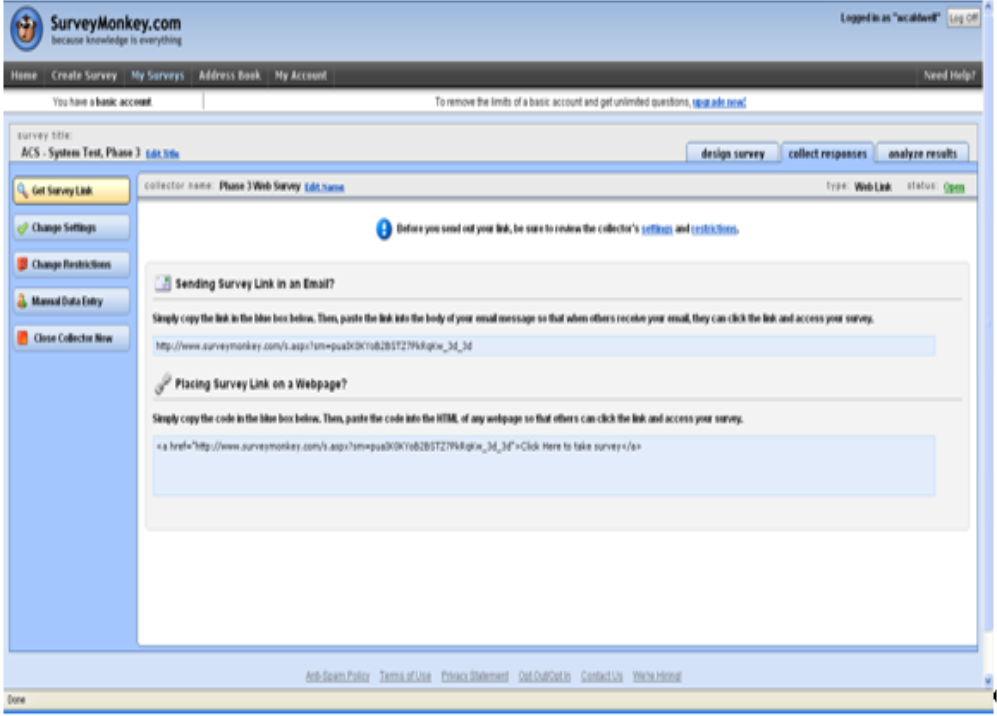
Figure 179: Publish Survey


Publish Surveys:  Web Page Details

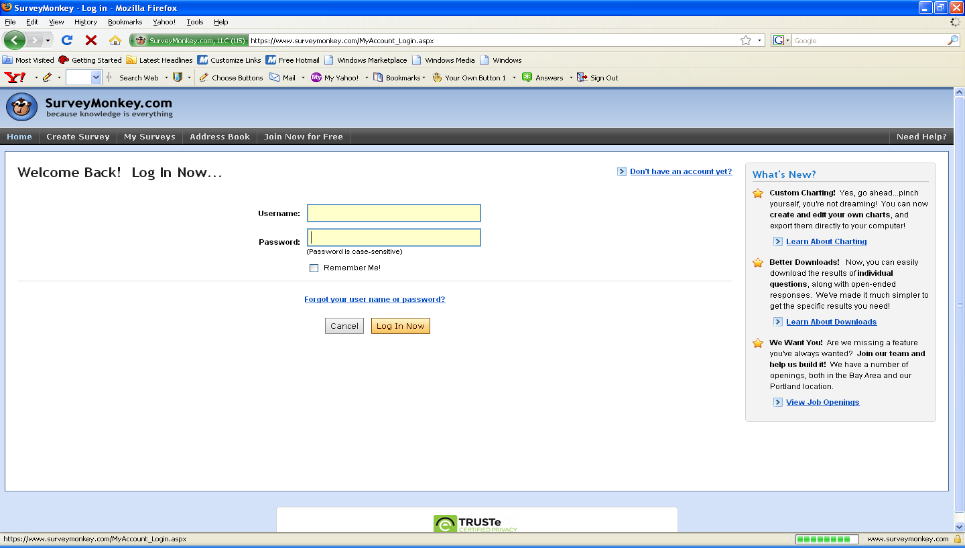
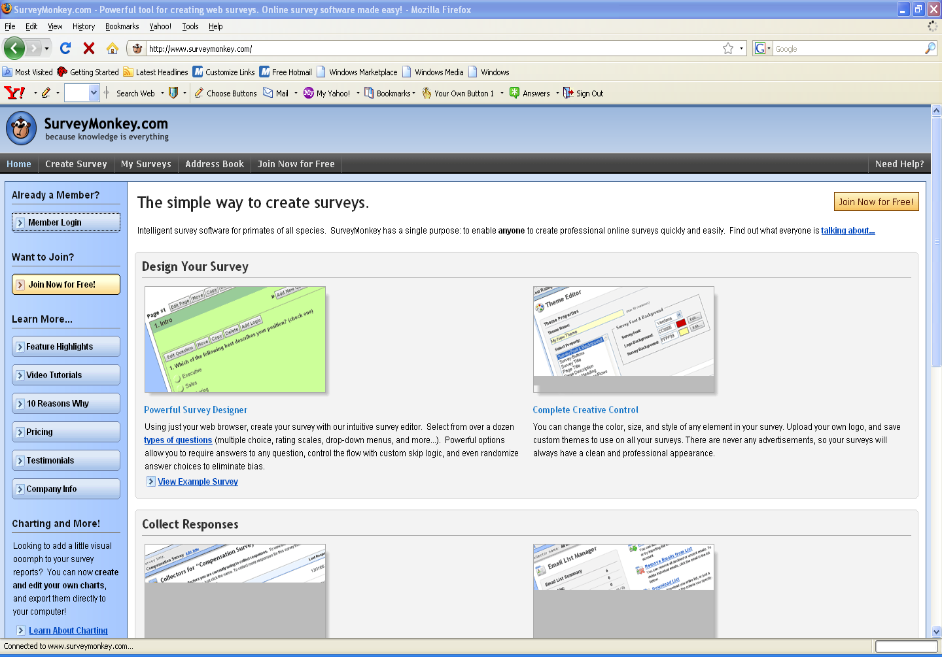
  1. The Survey Monkey application is used to create surveys (www.surveymonkey.com).
  1. After accessing Survey Monkey website, Enter UserID and Password (or create new account).

Figure 180: Publish Survey


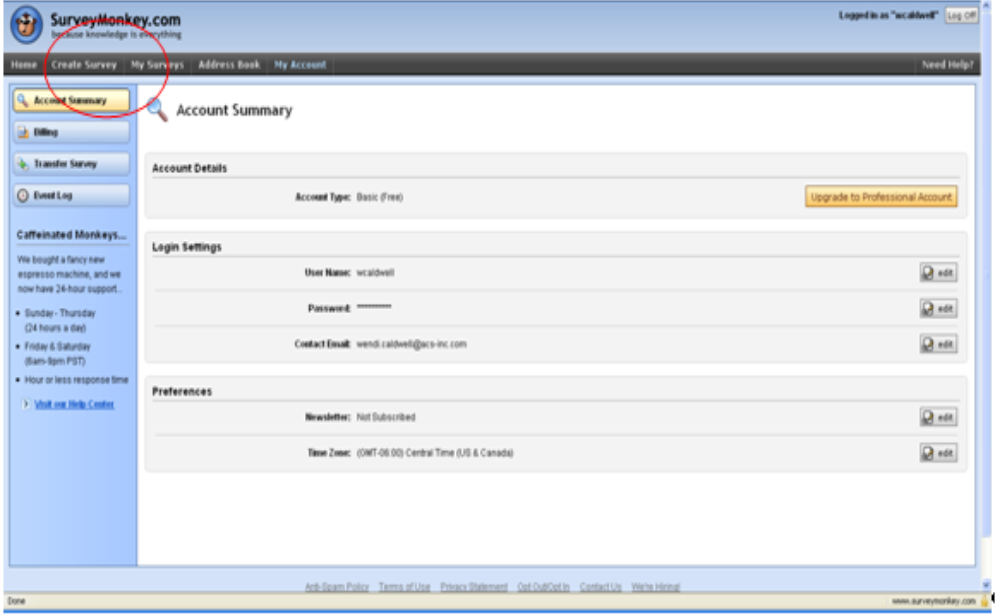
Figure 181: Publish Survey
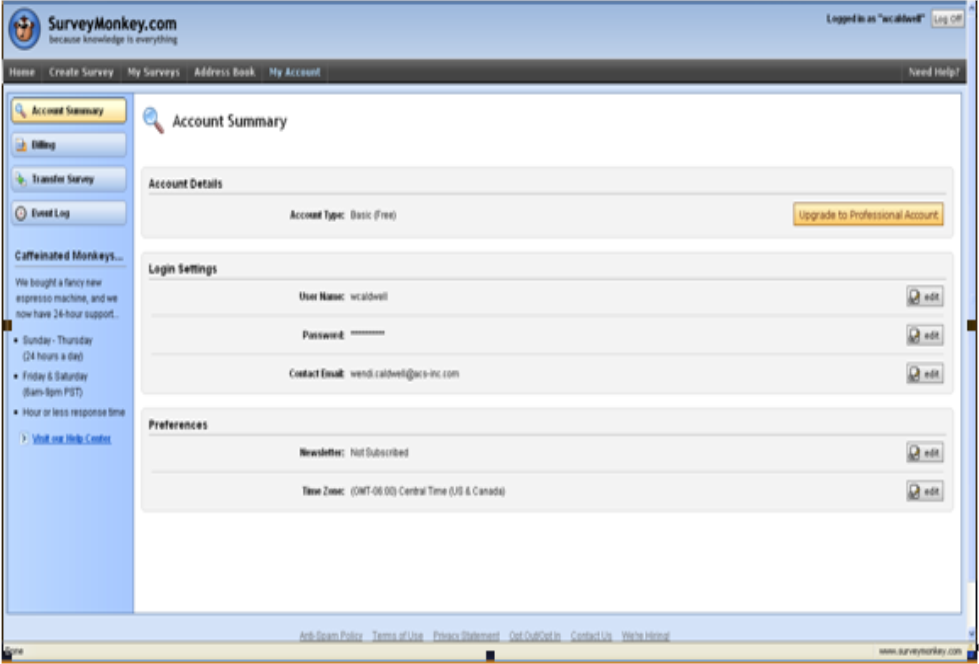
 

  1. To publish a new survey, the user should click the "Create Survey" tab at the top of the web page.

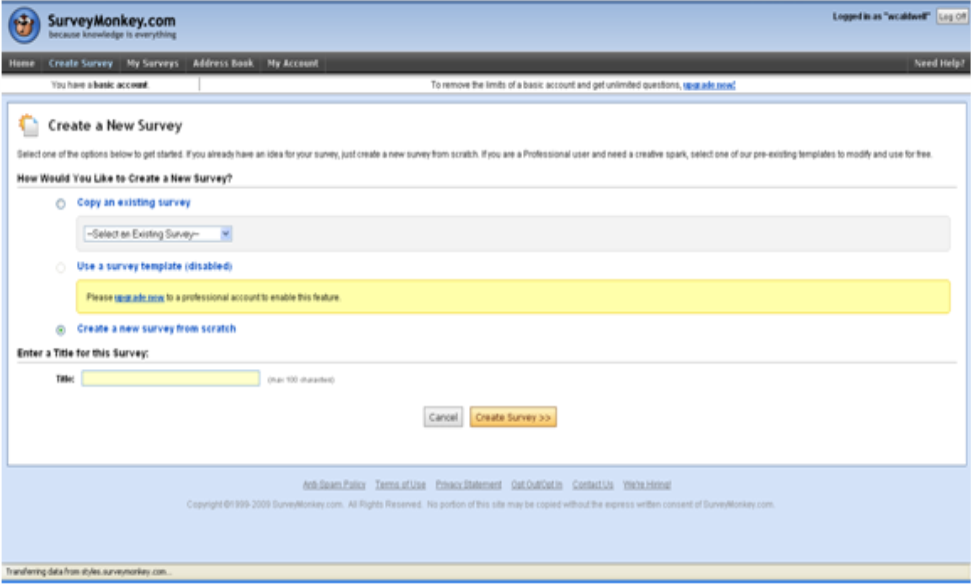
Figure 182: Publish Survey


  1. The user should select the option to Copy and existing Survey or to Create a new Survey from Scratch. Create a Title for the Survey at the bottom of the page, and then click Create Survey button.
  1. Follow the step by step by instructions until completed.
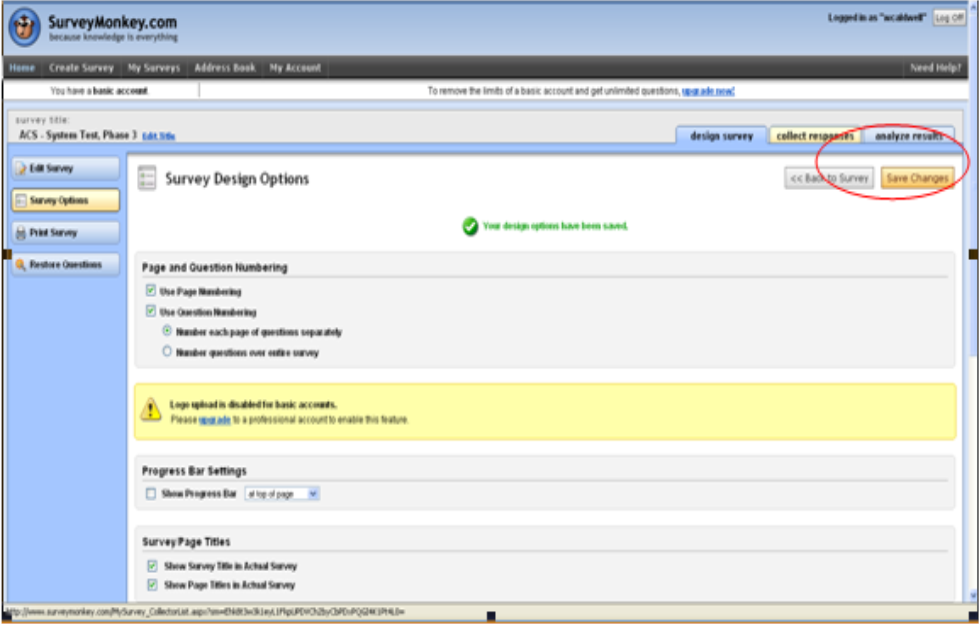
  1. Click the Survey Options button.
  1. If you are satisfied with your survey, click Save Changes.

Figure 183: Publish Survey


Figure 184: Publish Survey
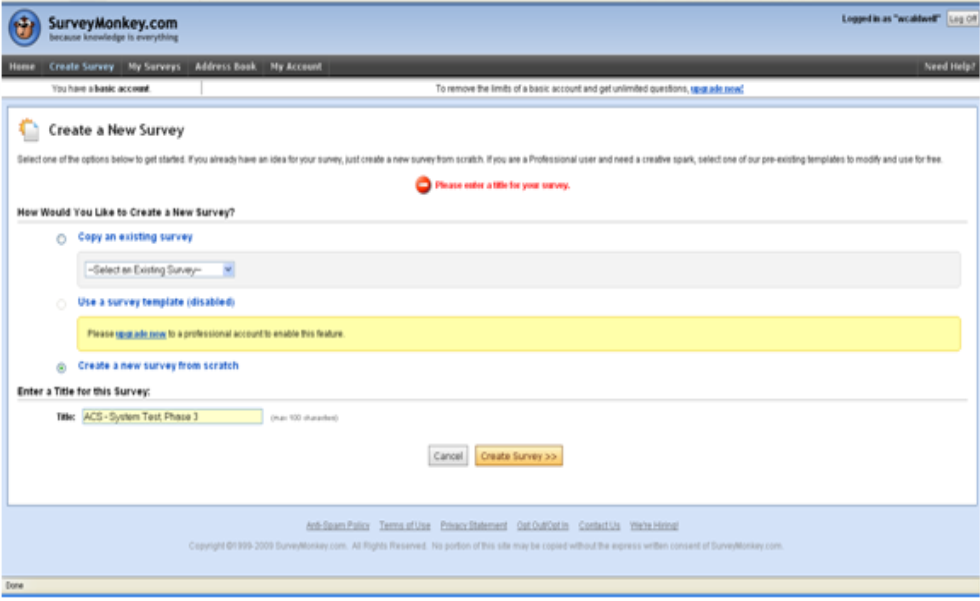
 

Figure 185: Publish Survey
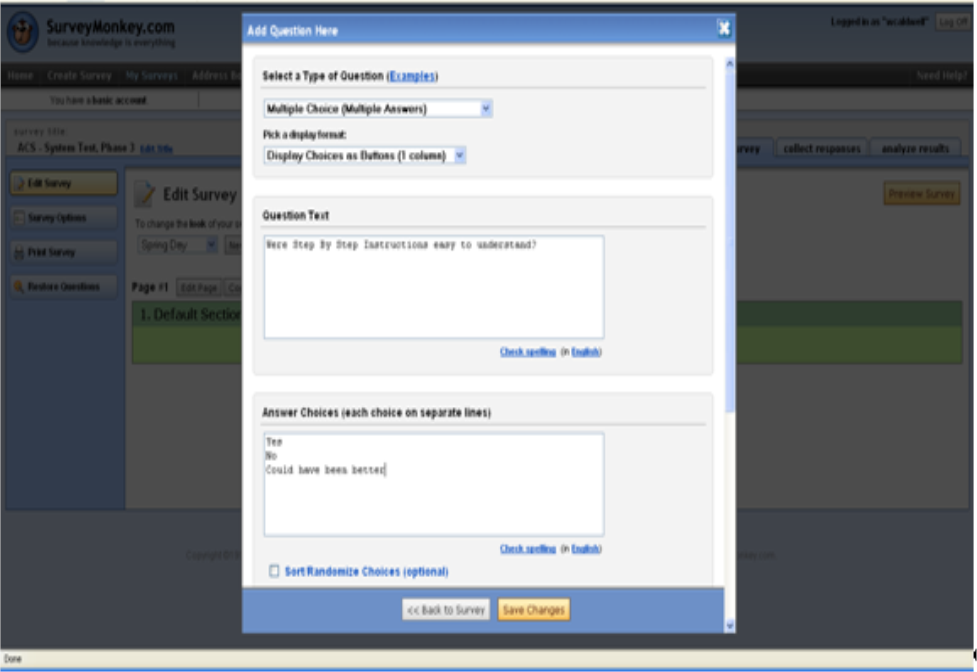
 

Figure 186: Publish Survey
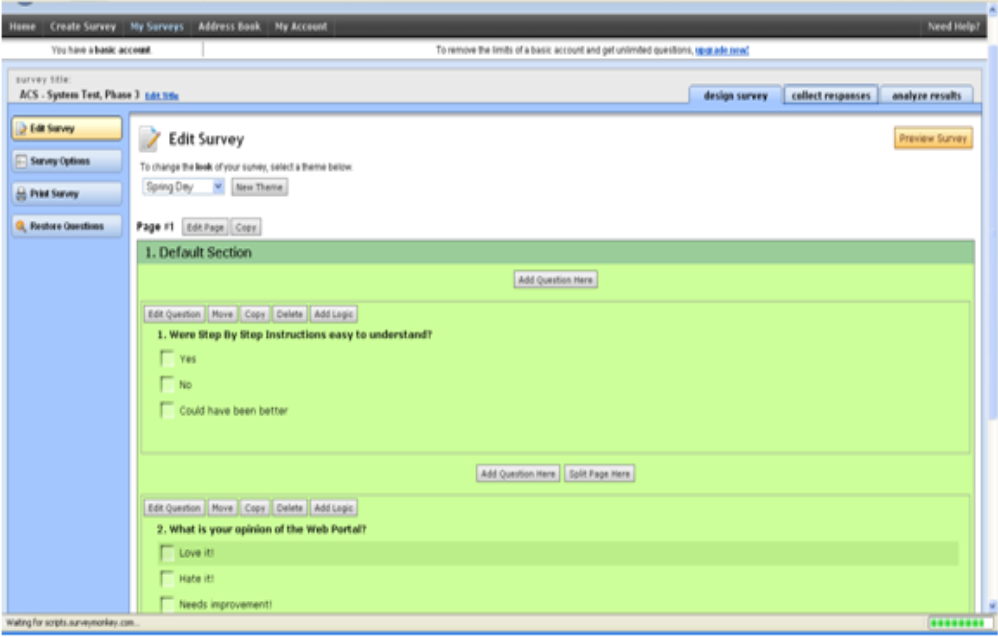
 

Figure 187: Publish Survey
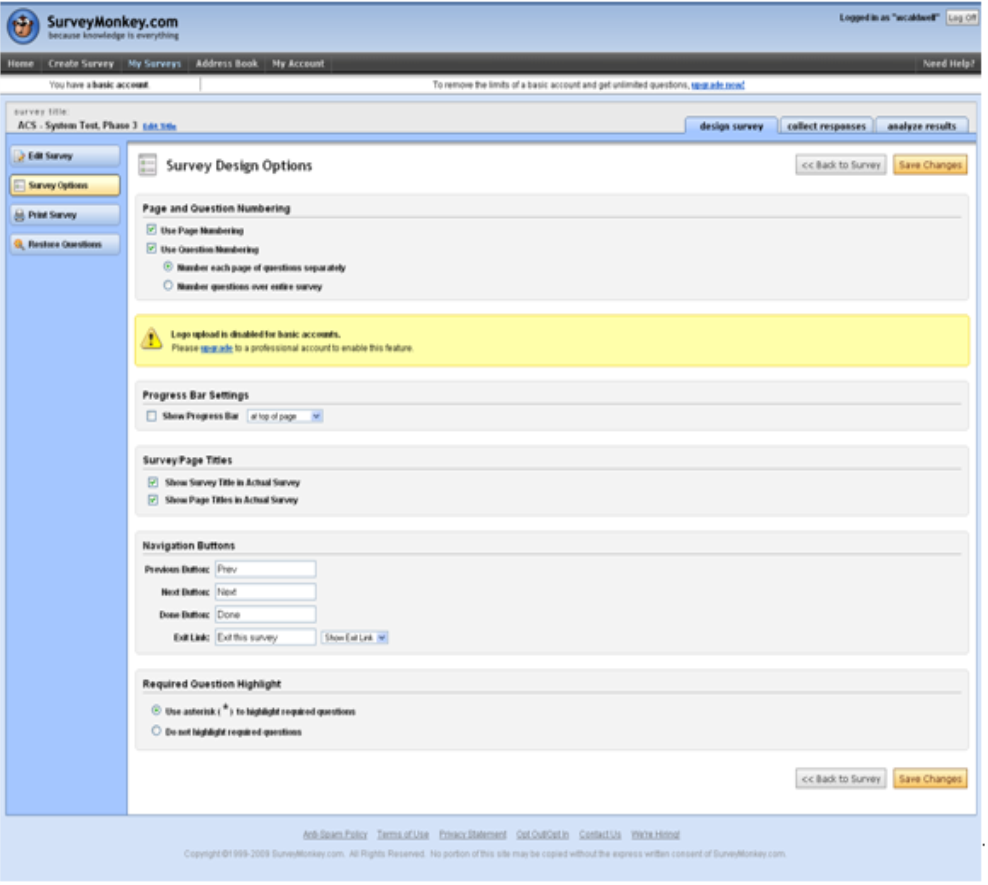
 

Figure 188: Publish Survey
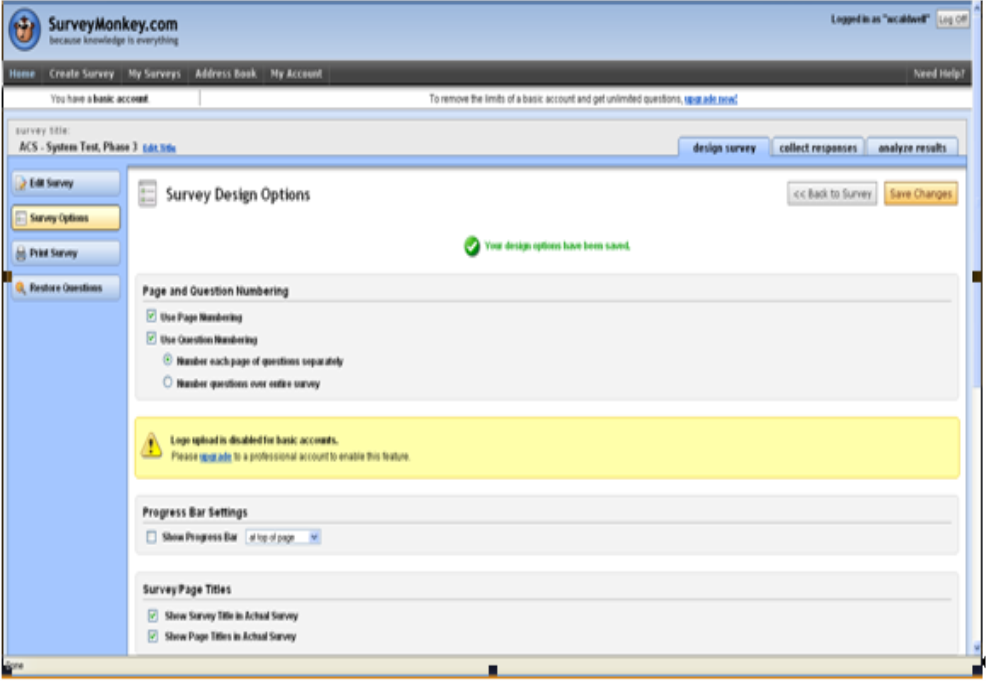
 

  1. Click the Collect Responses option at the top of the screen.
  1. Select the option to "Create a link to send in your own email message or to place on a webpage."
  1. Name the link (bottom of page).
  1. Click the Next button.

Figure 189: Publish Survey


Figure 190: Publish Survey
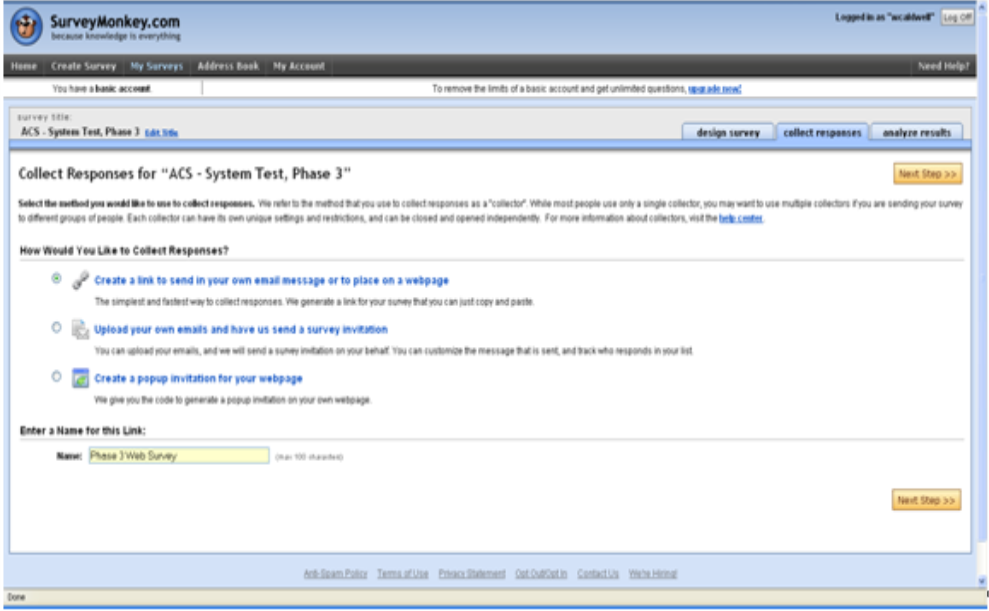
 

Figure 191: Publish Survey